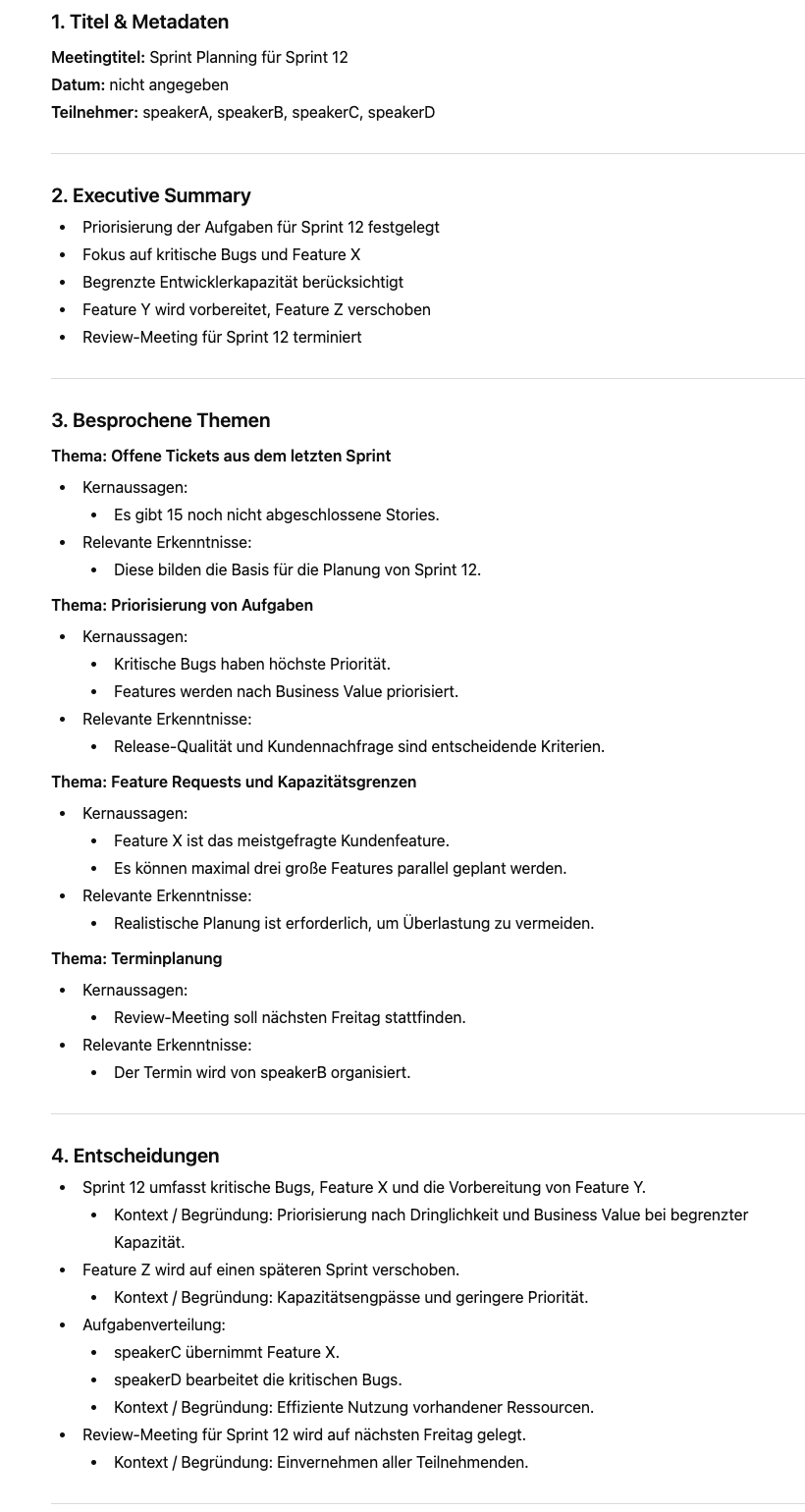
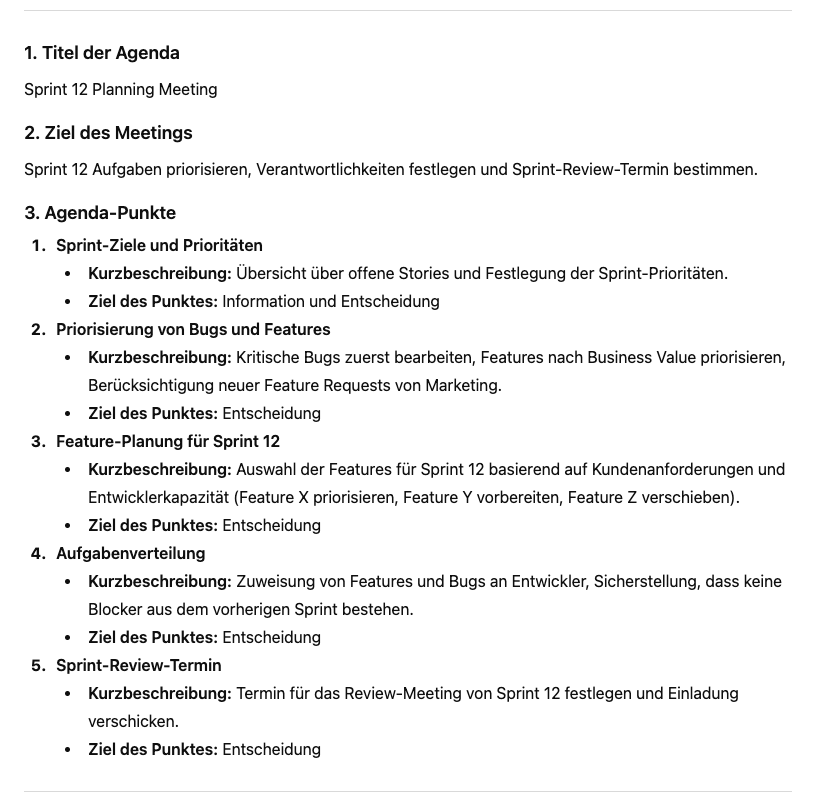
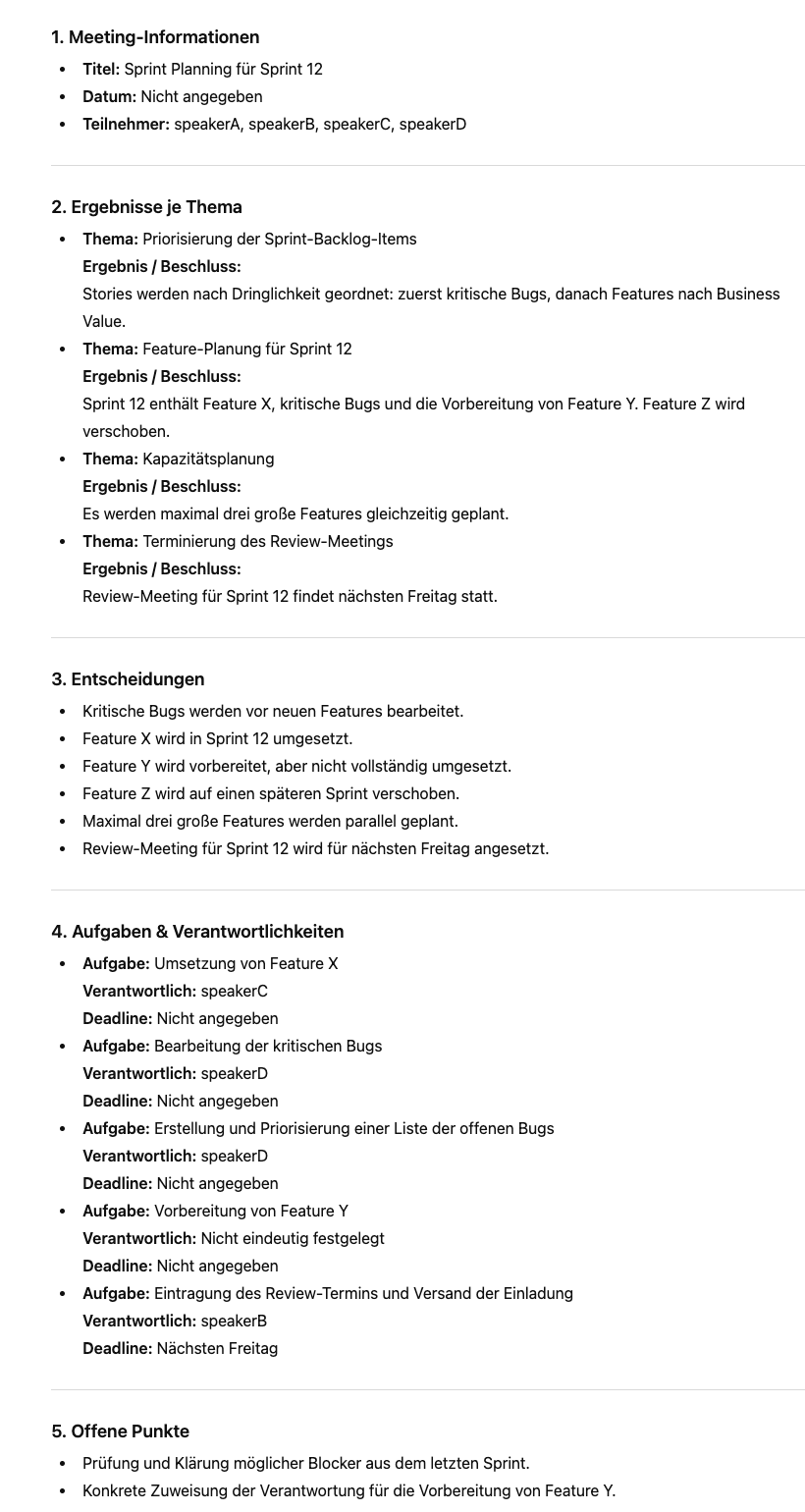
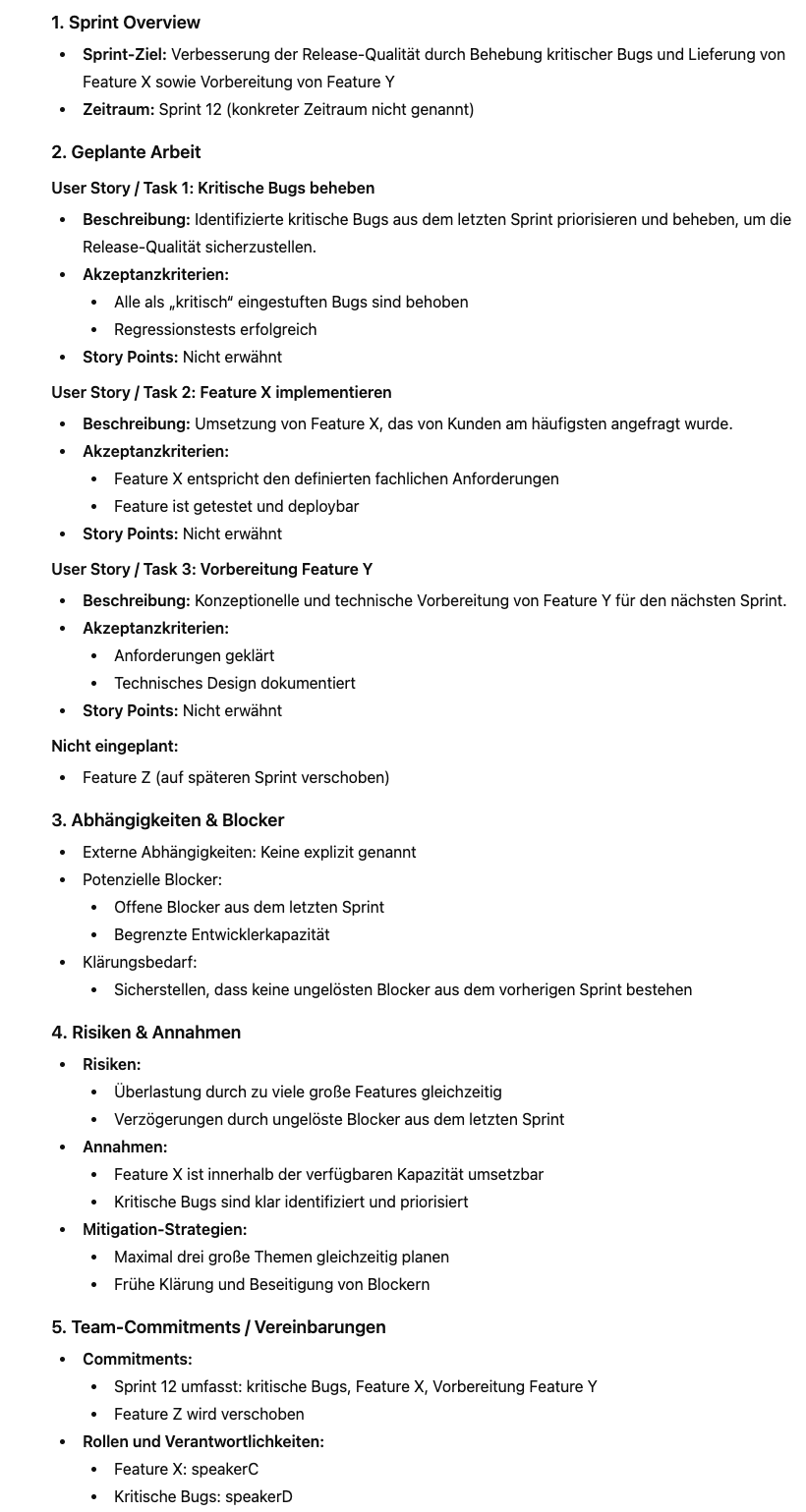
Convert video to document.
Step 1 - Select video
- Drag a video file into the drag-and-drop field or click “Search video”,
to select a file using your file browser.
- Then click Step 2 or the blue arrow on the right to continue.
Step 2 - Configuration
- Select the AI to be used in the first dropdown menu.
- Select the transcription tool to be used in the second dropdown menu.
- Select the file format of the document to be created in the third dropdown menu.
- Select the language of the document to be created in the fourth dropdown menu.
- Then click Step 3 or the blue arrow on the right to continue.
Step 3 - Select document type
Select a document type using the checkbox or choose a previously created document type from the dropdown menu.
- Then click Step 4 or the blue arrow on the right to continue.
Step 4 - Confirm
Click “Submit” to start the document generation.
During processing, four status indicators are displayed that gradually change from red to green and show the current progress:
Indicator 1: Upload and preparation of the video file.
Indicator 2: Transcription of the video content.
Indicator 3: AI-based processing and document creation.
Indicator 4: Completion of generation and provision of the document.
After successful completion, click Step 5 or the blue arrow on the right to continue.
Step 5 - Identify speakers
In the dropdown menu, you can select a recognized speaker.
Using the play button, you can listen to a spoken sentence to clearly identify the speaker.
With the speaker icon, you can adjust the volume.
Using the three-dot menu, you can set the playback speed.
In the text field “Write name”, enter the actual name of the speaker so that it is displayed in the document instead of placeholders such as “Speaker A”.
Confirm the entry with “Rename Speaker”.
With the “Rewrite Document” button, all speaker labels in the document are then replaced.
After that, click Step 6 or the blue arrow on the right to continue.
Step 6 - Save document
Click “Download” to save the document.
A file explorer will then open, where you can select the desired storage location.
Create document type
- Open the burger menu at the top left and select “Manage document types”.
- Then select the option “-- Create new document type --” from the dropdown menu.
- Enter a descriptive name for the new document type.
- Carefully formulate the prompt for the AI-based processing.
- Click Save document type.
Note:
The entered prompt is transmitted unchanged to an AI service. Therefore, make sure to comply with applicable data protection regulations and do not enter any sensitive or personal data.
Edit document type
- Open the burger menu at the top left and select “Manage document types”.
- Then select the document type to be edited from the dropdown menu.
- Revise the existing AI prompt or formulate a new prompt.
- Finally, click “Save document type”.
Note:
The entered prompt is transmitted unchanged to an AI service. Therefore, make sure to comply with applicable data protection regulations and do not enter any sensitive or personal data.
Delete document type
- Open the burger menu at the top left and select “Manage document types”.
- Then select the document type to be deleted from the dropdown menu.
- Finally, click “Delete document type”.
Note:
After confirming the deletion process, the document type cannot be restored.